.svg)

A Windows update can finish successfully while a business workflow quietly stops working.
The VPN client opens, but nobody can connect. The finance application launches, but its PDF printer has disappeared. The scanner is plugged in, powered on and apparently on strike.
Those are the kinds of dependencies worth checking as you plan for Windows 11 26H2.
Microsoft has made the upgrade straightforward. Eligible devices on 24H2 or 25H2 can move to 26H2 through a small enablement package, usually with one restart. Because these releases share an underlying platform, Microsoft says validation effort is reduced.
That is welcome news for an endpoint team with a full change calendar. It still leaves an important question: can people complete the work they rely on after the update?
For applications with older driver dependencies, that deserves a closer look.
The driver behind the application
Windows is tightening which kernel-mode drivers it trusts. Under the updated rules, drivers signed through the Windows Hardware Compatibility Program remain trusted, alongside an allow list of approved legacy drivers. Older cross-signed drivers outside that list can be blocked.
This change predates 26H2. Microsoft began introducing it through updates in April 2026. Your devices may already be evaluating or enforcing the policy, depending on their update history and configuration.
The practical implication is that an application can depend on a driver Windows no longer allows to load. That dependency may be several layers away from the icon on the desktop.
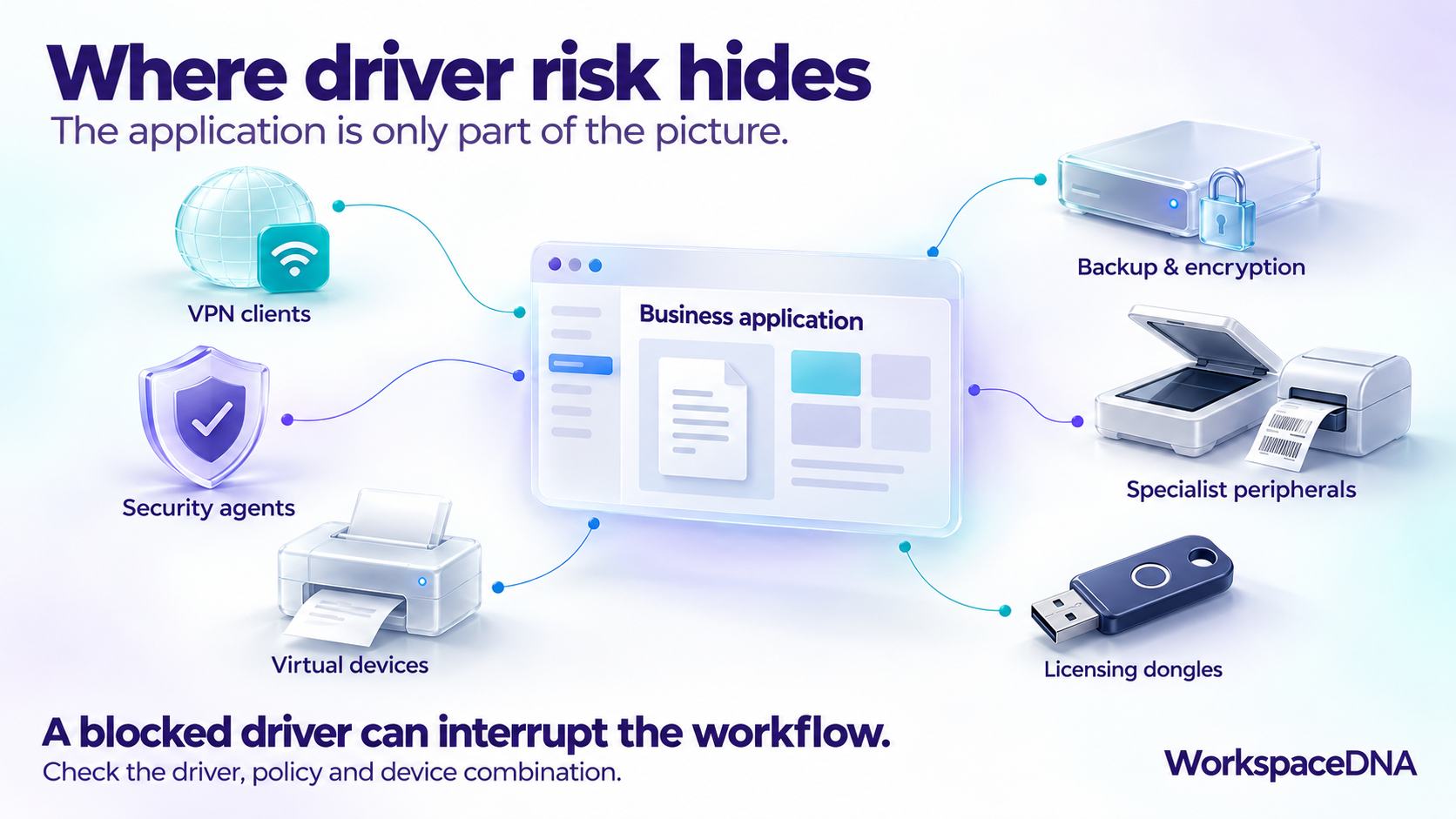
Start by looking at software that installs or relies on kernel drivers, including:
- VPN clients, network filters, endpoint security and DLP agents.
- Backup, encryption and storage tools.
- Scanners, label printers, card readers and specialist USB equipment.
- Virtual printers, audio devices and display software.
- Licensing dongles and older line-of-business applications with bundled drivers.
These are areas to investigate, not a list of products known to fail. Risk depends on the exact driver, its signing and the policy active on the device.
Pay particular attention to the application that “has always worked.” That may also be the one nobody has repackaged, updated or discussed with the vendor in years. A small user count does not make it unimportant if those users run payroll or keep a production line moving.
A successful pilot needs context
The Windows Driver Policy starts in evaluation mode, where drivers that would be blocked can still load. Enforcement follows only when the evaluation conditions are met.
That means a working application on a freshly updated test device does not, by itself, tell you how it will behave under enforcement. Record the policy state alongside the test result, and exercise the less frequent workflows too. A monthly reporting task is easy to miss in a pilot focused on everyday use.
When something fails, check the CodeIntegrity Operational log in Event Viewer. Event 3076 records an audit violation; 3077 records an enforced block. Check the policy identifier to confirm which policy generated the event. Those details help connect “the scanner stopped working” to the driver that actually needs attention.
Check elevation if you enable Administrator Protection
Administrator Protection is another consideration, but it is off by default. Installing 26H2 does not automatically switch it on.
When enabled, it uses just-in-time elevation and a separate administrative profile. Microsoft documents compatibility implications for applications that depend on shared profile settings or credentials.
If it is part of your rollout, test interactive installers, application updaters and support tools using the accounts and permissions people actually have. A successful deployment through a management tool running as SYSTEM does not exercise the same path as a technician launching an installer.
Use a supported test environment. Microsoft currently excludes Windows 365 Cloud PCs and Azure Virtual Desktop session hosts from Administrator Protection support.
Give the team a focused validation plan
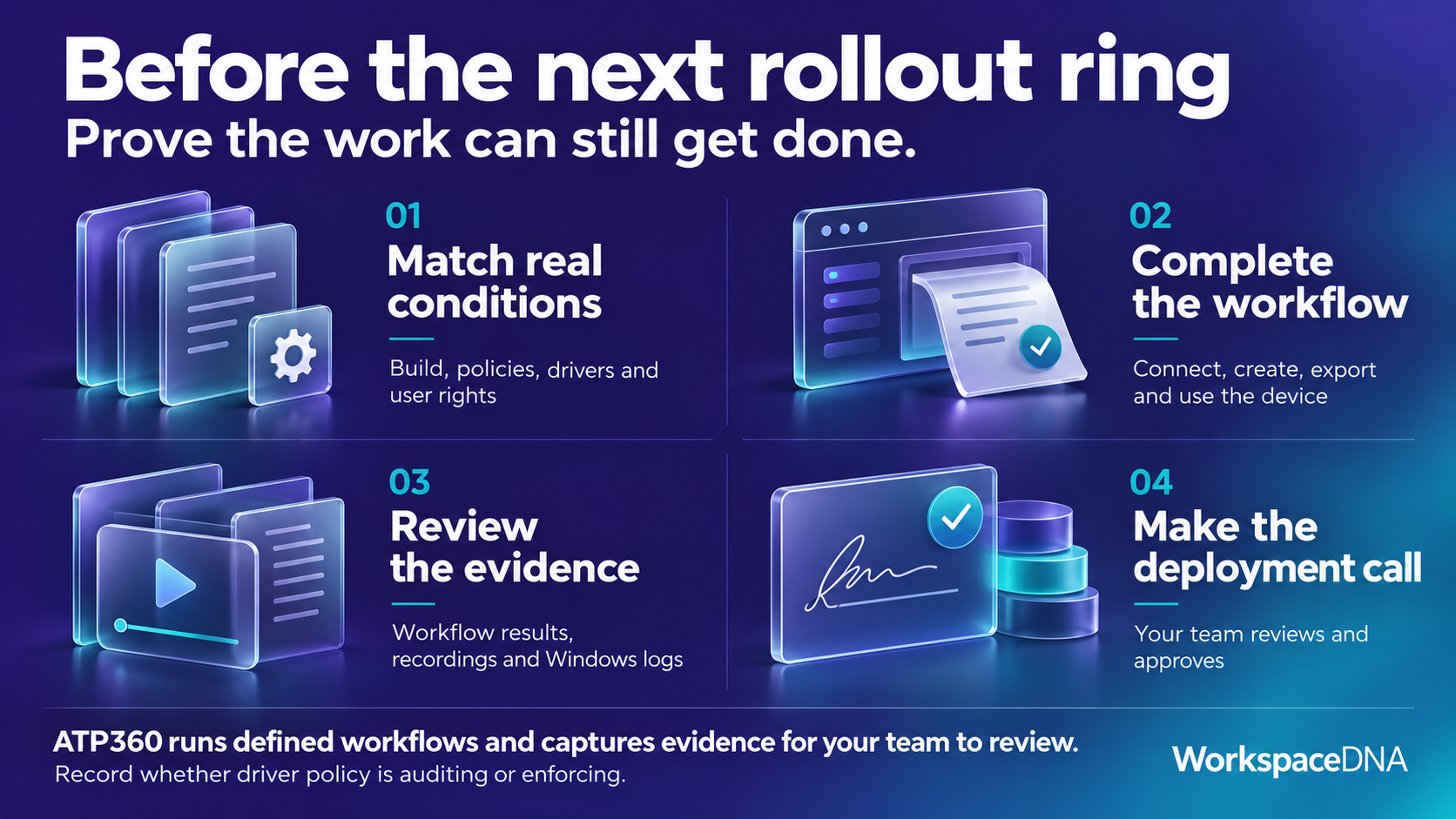
For an enterprise IT leader, the useful ask is a clear account of which critical workflows were tested, under which conditions, and what happened. We would start here:
-
Prioritize by business impact. Put remote access, security tooling and operationally critical applications first. Include specialist applications with a small but essential user base.
-
Compare the current and target configurations. Use the intended Windows build, security policies, driver versions and user permissions. Capture whether driver policy is auditing or enforcing.
-
Test through to the outcome. Connect through the VPN and open the resource. Generate the report and export it. Include install, update, repair and uninstall where those paths matter.
-
Include representative hardware. Test device-dependent workflows with the actual peripheral and driver combination. A virtual desktop cannot establish that a physical scanner will work.
-
Resolve failures and control expansion. Review application results alongside Windows logs, obtain supported drivers from vendors and retest. Expand deployment rings with clear stop criteria and a recovery plan.
Check your support deadline by edition, too. Windows 11 24H2 Home and Pro reach end of updates on October 13, 2026. Enterprise and Education remain supported until October 12, 2027, according to Microsoft’s support guidance.
Where ATP360 helps
The difficult part is repeating meaningful tests across the applications your business depends on, especially when the people who know those workflows already have full-time jobs.
ATP360 helps by running defined application workflows in a pre-production environment and capturing recordings, screenshots and results for your team to review. For driver-related changes, those workflows can expose the user-visible impact of a dependency failing on the tested configuration.
Your endpoint team can then use Windows logs to establish whether a blocked driver caused the failure. Device-specific checks still need representative hardware, and driver certification remains with Microsoft and the vendor.
Your team defines what a successful workflow looks like, reviews the evidence and makes the deployment decision. That gives you a more useful answer than “the update installed successfully.”
Before the next deployment ring, ask to see the critical workflows complete. That is the evidence your business needs.